Get started
This page sets up macOSLAPS from scratch with an MDM, the most common setup. Upgrading Macs that already run macOSLAPS? Read Upgrading from 3.x first.
1. Choose the account and how IT gets the password
macOSLAPS manages one local admin account, set by LocalAdminAccount (default admin). Create it the way you do today, for example with your MDM's enrollment settings, a script, or a package.
One account, one owner
Don't point macOSLAPS at an account your MDM's own LAPS feature already rotates, such as Jamf Pro's LAPS for the management account or the PreStage admin. Two tools changing one password will lock each other out. macOSLAPS warns when the account was created by your MDM (see AllowMDMManagedAccount) and stops rotating if something else changes the password.
Then decide how IT gets the password. Most people start with escrow and add certificates later. See Getting the password to compare the options.
2. Make a configuration profile
Settings go in a configuration profile for the preference domain com.joshua-d-miller.macoslaps. For an MDM setup you need at least:
<key>Method</key>
<string>Local</string>              <!-- the built-in default is AD -->
<key>LocalAdminAccount</key>
<string>ladmin</string>
<key>ApprovedAdmins</key>
<array>
    <string>group:helpdesk</string>  <!-- anyone else who should stay admin -->
</array>
Set Method and check ApprovedAdmins before you deploy
- The built-in default for
MethodisAD, from macOSLAPS's Active Directory origins. MDM setups must setLocal. - Admin group protection is on by default. On its first run macOSLAPS removes every admin except the managed account,
root, the accounts inApprovedAdminsand the admin your MDM created during enrollment. If your users are admins on purpose, add them, or setAdminGroupPolicytoreport. Read Admin group protection.
Tools for building the profile:
- Jamf Pro: upload the custom schema under Application & Custom Settings.
- iMazing Profile Editor and other editors: the ProfileManifests manifest.
- Anything else: start from the example plist.
Every key is described in the settings reference.
If the account has a secureToken
If the account already exists with a password you know, and it has a secureToken (most admins created by Setup Assistant or your MDM do), macOSLAPS needs that password once for its first rotation. Set FirstPass to it, and remove the key once Macs have rotated. Or run the first rotation from your MDM, which keeps the password out of the profile:
See secureToken and FileVault for why.
3. Allow the background items (recommended)
macOSLAPS installs two LaunchDaemons and a LaunchAgent. Without a profile, macOS shows users a "Background Items Added" notification. A Managed Login Items (Service Management) profile with team identifier 9UYK4F9BSM covers all three and keeps users from turning them off.
4. Install the package
Download the pkg from Releases and deploy it with your MDM. There are three:
| Package | Installs | Use it when |
|---|---|---|
macOSLAPS-4.0.0.<build>.pkg |
Everything | Almost always |
macOSLAPS-Binary-4.0.0.<build>.pkg |
Only /Applications/macOSLAPS.app |
You manage the LaunchDaemons yourself |
macOSLAPS-LD-4.0.0.<build>.pkg |
Only the LaunchDaemons and LaunchAgent | The app is already installed |
Install the profile before the package, so the first run uses your settings. The package installs:
| Item | Where |
|---|---|
| The app (command line included) | /Applications/macOSLAPS.app |
The command on your PATH |
/etc/paths.d/laps |
| Legacy path (removed in 5.0) | /usr/local/laps/macOSLAPS → the app |
| Rotation check, every 90 minutes | /Library/LaunchDaemons/com.joshua-d-miller.macoslaps-check.plist |
| Service for the window and menu bar | /Library/LaunchDaemons/com.joshua-d-miller.macoslaps-service.plist |
| Menu bar countdown | /Library/LaunchAgents/com.joshua-d-miller.macoslaps.agent.plist |
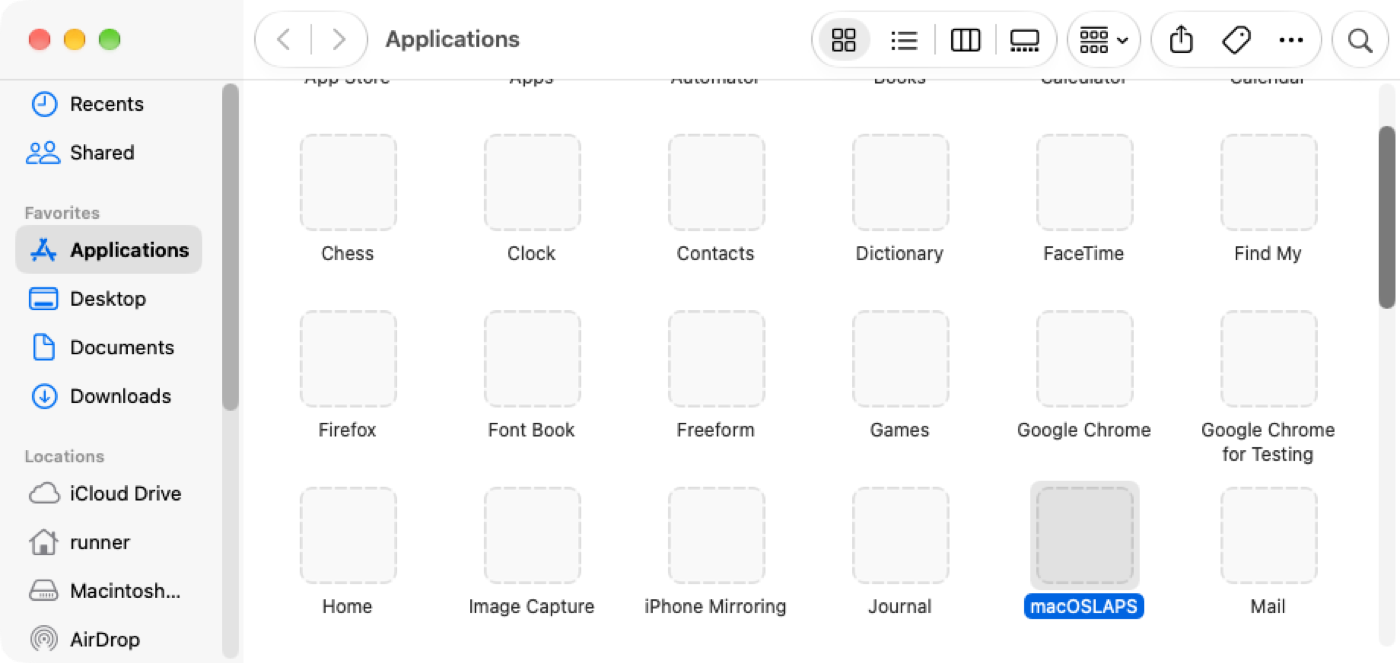
Once installed, macOSLAPS appears in Applications:
Henri Kovanen's MDM install script installs, updates or uninstalls macOSLAPS from your MDM, and can also create the managed admin. Review its settings before you use it.
5. Collect the password in your MDM
Add an inventory attribute that runs macOSLAPS -escrow (an extension attribute in Jamf Pro, a custom attribute in Intune, a sensor in Workspace ONE). Ready-made scripts for each are described in MDM setup. Add a second one for macOSLAPS -status, which catches broken Macs before you need their password.
6. Check a Mac
On a test Mac, after the profile and package are installed:
sudo macOSLAPS -showConfig   # the settings in effect and where each came from
sudo macOSLAPS -status -v    # a readable checklist: account, secureToken, stored password, admins
sudo macOSLAPS -escrow       # what your MDM will collect
-status -v should show the account, a stored password that verifies, and no line saying "Admins not in ApprovedAdmins" that lists someone you meant to keep. The log is at /Library/Logs/macOSLAPS.log. If something's wrong, see Troubleshooting.